
User onboarding and role assignment
Dost is only useful when the right users can log in and work in the platform.
Defining users and their roles properly avoids unauthorized access and confusion about what each person can see and do.
What is a user and what is a role?
User: a person in your company with access to Dost, using their email and permissions.
Role: the set of permissions that determines what that user can do and see, for example Admin vs. Standard User.
How do I do it?
Example: you want to give access to someone on the accounting team.
Access the User Management section
In the left-hand menu, scroll down to your user and click on “Users Management”.
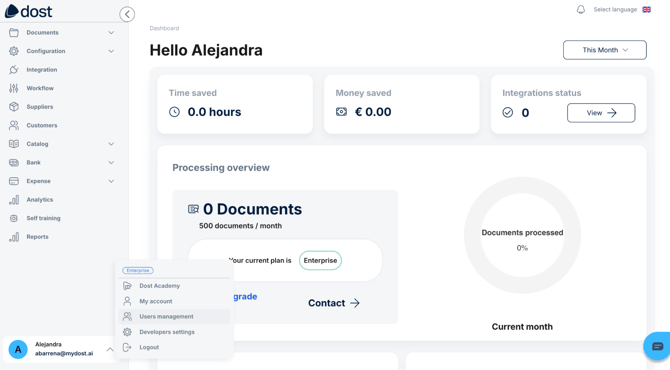
In the image above, you can see the user menu view with the “Users Management” option highlighted at the bottom left.
Click on “Add user”
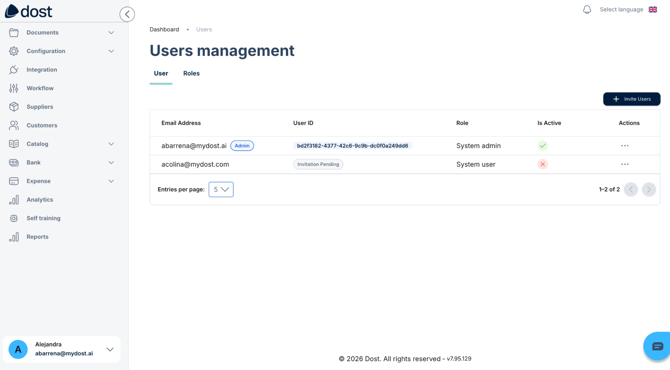
Press the “+ Invite Users” button.
Enter the basic details
Corporate email address.
Assign a role
Select the appropriate role, for example the default roles “System Admin” or “System User”.
If your account includes custom roles, such as “Finance Manager” or “AP Clerk”, choose the one that best matches that person’s responsibilities.
In the next image, you can see the user creation screen with the roles dropdown.
Send the invitation
Click “Send”.
The user will receive an email to activate their account and create their password, or use SSO with Google or Microsoft, depending on the configuration.
Note on roles and permissions
Roles determine whether a user can, among other things:
- Configure documents.
- Configure mappings.
- Configure workflows.
- Configure self trainings.
- View all documents or only some of them.
- Approve invoices.
We recommend keeping an internal role matrix with the role name, what it can do, and who it is assigned to.
Best practices for users and roles
Start with a few well-defined roles, for example Admin, Finance, and Viewer.
Avoid giving Admin access to everyone: only to those who truly need it.
Review the user and role list at least once a year, or whenever there are major team changes.