(If you want a conceptual overview of self-training in Dost, you can review the article What is Self-Training (AI Auto-Training).)
Training the AI for a Specific Supplier (Basic Example)
Example: training Dost to correctly recognize the VAT ID and totals of a frequently used supplier.
How Do I Do It? (Steps + Visual Guide)
1. Select a Priority Supplier
Identify a supplier with a high volume of invoices and recurring errors (for example, incorrect VAT ID detection or incorrect totals).
2. Open a Document from That Supplier
- Go to the Documents section.
- Filter by the supplier.
- Open one of their invoices.
3. Correct the Incorrect Fields
Review key data such as:
- VAT ID
- Company name
- Net amount
- VAT
- Total
- Invoice number
Correct any fields that the AI has interpreted incorrectly.
4. Save the Correction and Add the Self-Training Tag
- Click Save.
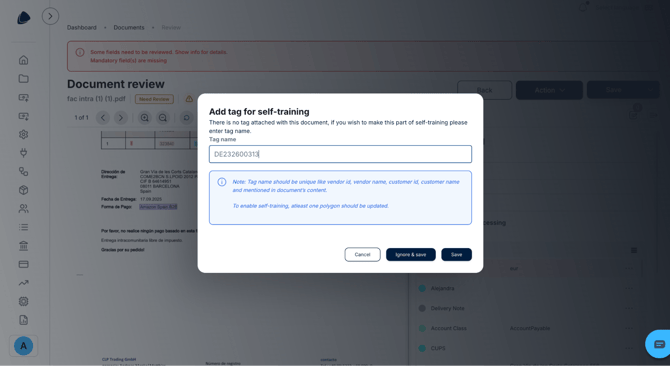
- When the option or message “Add tag for self-training” appears, add it.
- Use a unique and specific tag for this supplier (for example, its VAT ID) so all invoices from that supplier are consistently linked.
5. Repeat the Process with Multiple Documents
Repeat steps 2–4 for at least 5 documents from the same supplier.
The more high-quality examples the AI receives, the better it learns the supplier’s patterns.
In the image below, you can see where and how to enter the “tag name”.