(If you want a conceptual overview of workflows in Dost, you can review the article What is a Workflow in Dost.)
How Do I Do It? (Steps + Visual Guide)
Example: “The Finance Director must approve any invoice over €5,000.”
1. Access the Workflows Section- In the left-hand menu, click Workflows.
- You will see a list of existing workflows (if any) and a button to create a new one (“+ New Workflow”).
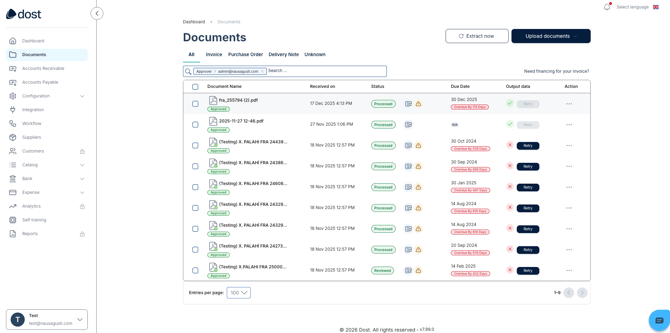
In the image below, you can see the left-hand menu with Workflows highlighted.
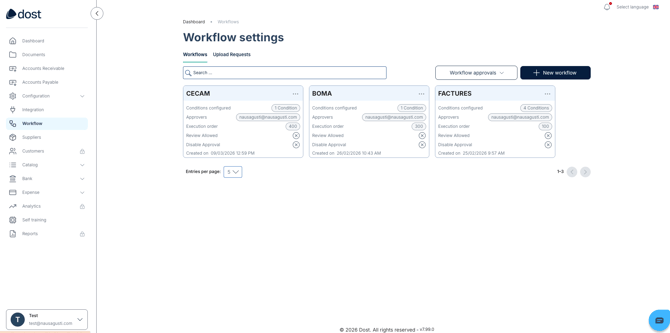
- Click the + New workflow button.
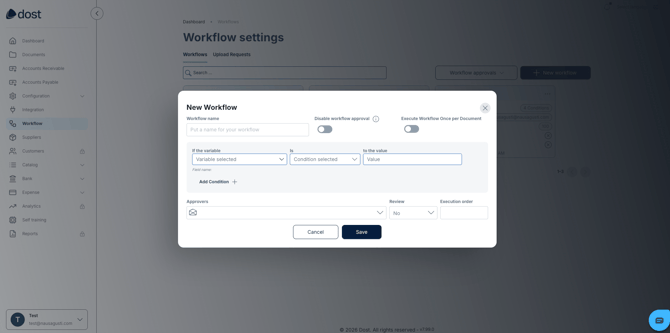
- The workflow configuration screen will open.
In the image below, you can see the general “New workflow” screen with the main sections: name, conditions, and actions.
Example:
- “Approval Finance Director > €5,000”
Write a clear and specific name in the name field.
Avoid generic names such as “Workflow 1” to make future maintenance easier.
4. Define the Conditions (When It Triggers)- Field: “Invoice total”
- Condition: “is greater than”
- Value: “5000”
Go to the Conditions section and set a rule such as:
You can optionally add more conditions to narrow the scope (for example, only invoices, not purchase orders, or specific suppliers).
5. Define the Action (What Should Happen)- “Send for approval”
- To: [Finance Director]
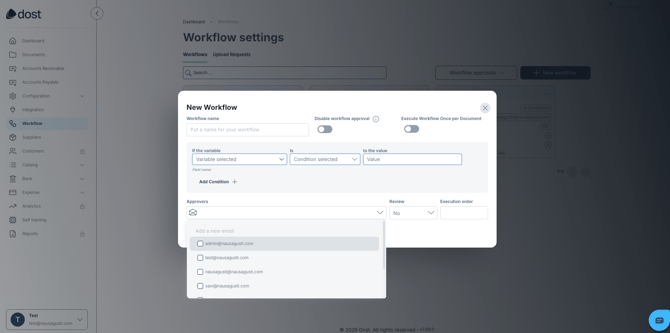
In the Actions section, select:
Dost allows multiple approvers in sequence (for example, department manager first and then Finance Director), depending on your workflow design.
In the image below, you can see the actions section showing approver or approver group selection.
6. Select the Scope
Check whether the workflow applies to the entire account or only to a specific company, entity, or business unit.
Adjust the scope based on your organizational structure (for example, only one company within a group).
7. Save and Activate the Workflow- Click Save.
- From that moment on, all invoices that match the conditions will automatically enter the approval queue.
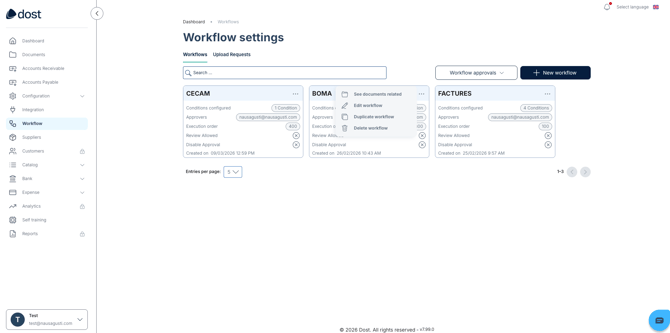
In the image below, you can see the created and active workflow (“factures”).
- Upload a test invoice over €5,000.
- Check that it appears in the Finance Director’s “Pending Approval” list.
- Confirm that the document status updates as it is approved or rejected.
In the image below, you can see the “Documents pending approval” view filtered by workflow.