
Exporting Documents (Practical Example)
Example: exporting reviewed invoices from the last month in CSV format for your ERP.
How Do I Do It? (Steps + Visual Guide)
1. Select the Appropriate Template
- Go to the Export section.
- Choose the template that corresponds to invoices (for example, “Invoices_ERP_X”).
2. Run the Export
- Click Export.
- A downloadable CSV file will be generated.
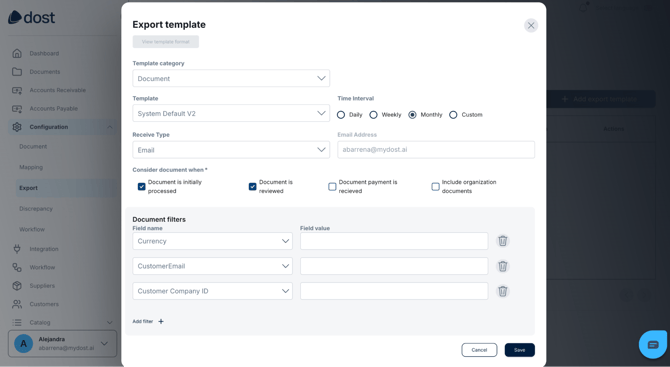
In the image below, you can see the template selection screen with filters enabled.
Best Practices
- Always start with a small test export (a few documents) before running large-scale exports.
- Define internally who is responsible for executing exports (to avoid duplicates or overlaps).
- Keep a basic record of exports: date, template used, number of documents, and time period covered.
- Ensure that suppliers in Dost are properly trained, or otherwise that invoices are correctly configured manually.