
(If you want a conceptual overview of exports in Dost, you can review the article Exporting Data and ERP Integration.)
Understanding Export Templates
What is an Export Template?
An export template defines:
- Which documents are included (by type, status, dates, etc.).
- Which fields are exported (supplier, date, amount, taxes, accounting accounts, etc.).
- The output format (columns, order, header names).
Think of the template as the “translation layer” between Dost and your ERP.
Configuring or Reviewing an Export TemplateHow Do I Do It? (Steps + Visual Guide)
1. Access the “Export” Section
From the main menu, go to Configuration and enter Export.
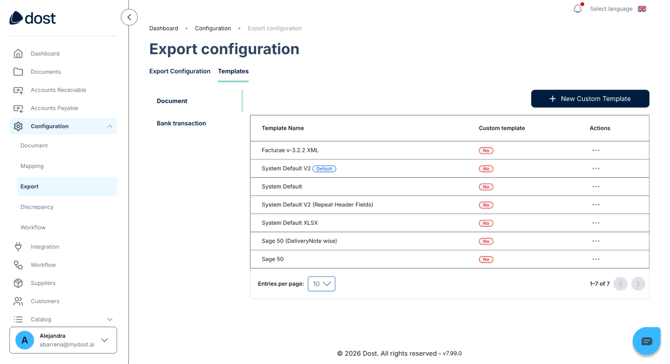
2. Review the List of Existing Templates
(Only applicable if you have CSV-based integration and it is defined in your contract.)
You will see a list of templates such as “Invoices_ERP_X”, “DeliveryNotes_ERP_Y”, etc.
Each template typically indicates the document type it applies to and its output format.
3. Edit an Existing Template (If Applicable)
Click on a template name to review:
- Which fields it includes
- Column order
- Specific mappings (for example, internal codes)
4. Create a New Template (If Needed)
If your ERP requires a different format, create a new template based on an existing one.
Define how each Dost field maps to each output column.
In the image below, you can see the export templates list view.
Best Practices
- Design templates together with your Finance team and, if needed, IT/ERP specialists to ensure the format is correct from the start.
- Avoid having too many similar templates; it is better to have a few well-defined ones.