
Fields Tab
What is it?
The Fields tab is where you define which fields exist in your documents (header, line items, and taxes), which ones are visible, and which ones are required.
Here you can decide, for example, whether you want to include purchase order number, cost center, or any internal fields specific to your company.
What is it used for? (Business Impact)Proper field configuration allows you to:
- Ensure that key accounting and reporting information is always captured.
- Avoid incomplete documents due to missing critical data.
- Adapt Dost to your company’s language and needs by adding custom fields.
When Do I Use It?
- During onboarding, to define the standard structure of your documents.
- After onboarding, in specific cases, the Customer Success team may adjust configurations based on supplier needs.
- When your ERP or internal processes change (for example, when a new mandatory field is introduced, such as “project” or “cost center”).
How Do I Do It? (Steps + Visual Guide)
1. Access Document Configuration
- Go to the Settings menu.
- Enter the Document section.
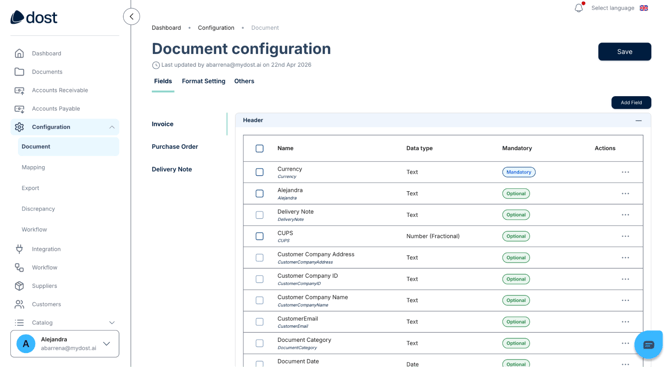
2. Open the “Fields” Tab
You will see a list of available fields, typically organized by:
- Name
- Data type
- Required (Yes/No)
- Actions
3. Configure the Fields You Want to Use
- Enable or disable fields depending on your company’s needs.
- Mark as required those fields that must always contain information (for example: Supplier, Invoice Date, Tax Base, VAT).
4. Add Custom Fields (If Applicable)
If Dost allows custom fields, you can create the ones you need, such as:
- Project
- Cost center
- Contract number
- Internal code
You can do this by clicking the “Add Field” button.
In the image below, you can see the Fields tab view.
Best Practices
- Do not mark too many fields as required: focus only on the truly critical ones to avoid user frustration. Start with a minimal set and expand gradually.
- Align your field list with your ERP: any mandatory field in your ERP should also exist (and be properly configured) in Dost.
- Review this configuration at least once a year or whenever there are significant changes in your internal processes.