
Filters and the search bar allow you to quickly find the documents you need among all the documents stored in your account.
When you're handling dozens or hundreds of documents every day, finding the right invoice at the right time is essential to avoid wasting minutes—or even hours—scrolling through document lists.
How Do I Use It? (Steps + Visual Guide)
1. Use the Search Bar
At the top of the document list, you can search using common fields such as:
- Supplier name
- Invoice number
- And other searchable document attributes
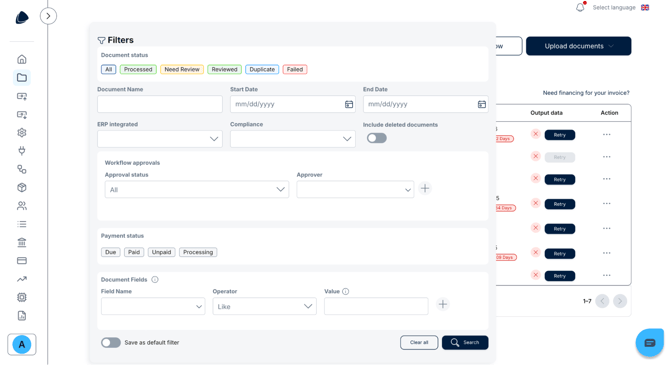
2. Apply Filters by Status, Date, or Document Type
Open the filter panel (typically through a Filter button or a funnel icon).
You can filter documents by:
- Date range
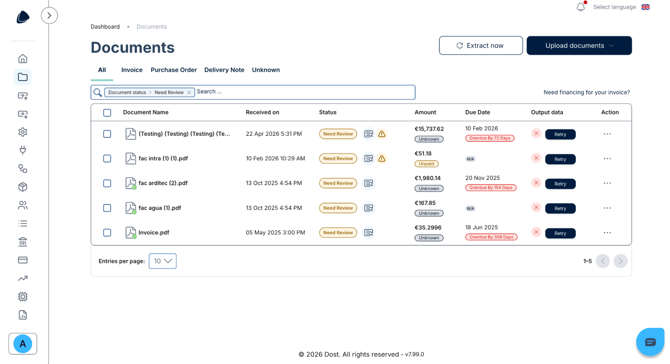
- Status (for example, only Need Review documents)
- Document type (Invoice, Purchase Order, Delivery Note)
- Supplier
3. Save Your Filter
Once you have configured the desired criteria, save the filter so it can be reused and remain properly configured for future use.
In the image below, you can see the Documents section with the filter panel expanded.
In the image below, you can see a filtered list showing only documents with the Need Review status.
- When creating filters, prioritize them based on the document types that your company receives most frequently.
- Regularly review unfiltered or pending document groups (for example, all documents that are not yet Reviewed) to prevent backlogs from accumulating.