(If you'd like a conceptual overview of what a document is in Dost, you can review the article What is a Document in Dost?)
What is the "Documents" Section?
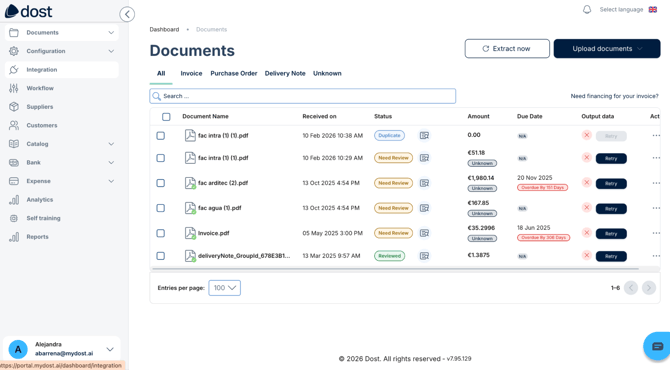
The Documents section is where you can view all files that Dost has processed or is currently processing: invoices, purchase orders, delivery notes, and more.
From here, you can review extracted data, make corrections, change document statuses, and prepare information for export to your ERP.
The Documents section is the most important area for your daily work. If you know how to navigate it efficiently, you'll review documents faster, make fewer mistakes, and always have a clear view of what still needs to be done.
How Do I Use It? (Steps + Visual Guide)
1. Access the Documents Section
From the left-hand navigation menu, click Documents.
2. Understand the List View
You'll see a table containing your documents, with columns such as:
- Document Name
- Document Receipt Date
- Status
- Due Date
- And other relevant information
3. Open a Specific Document
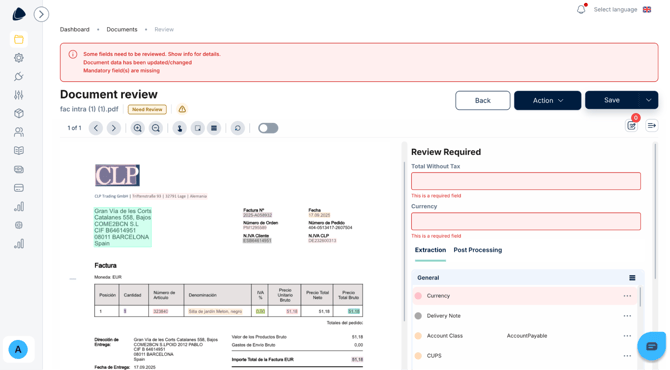
Click on any document row to view its details:
- On the left: the document image or PDF.
- On the right: the fields extracted by the AI (supplier, date, totals, taxes, etc.).
In the image below, you can see the general Documents view, including the document list, visible side menu, and filter bar.
In the image below, you can see the detailed document view, with the document displayed on the left and the extracted fields on the right.