
Mappings from Documents vs. from Configuration
In Dost, you can create mappings:
- From the Configuration section (as seen previously): intended for more global and planned rules.
- Directly from a document: when you identify a specific case while reviewing an invoice and want to turn it into a rule.
How Do I Create a Mapping from a Document? (Example)
- Open the document in the Documents section.
- Correct or fill in the field you want to automate (for example, cost center or accounting account).
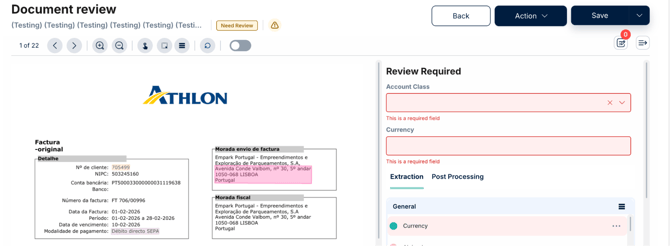
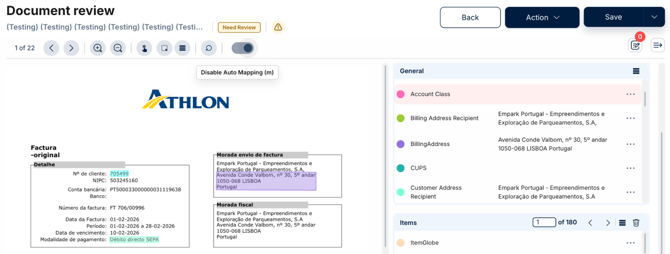
- Enable the “Activate Auto Mapping” option.
- Adjust the mapping window, where conditions and actions are pre-filled based on the document.
- Save the mapping.
In the images below, you can see a document with the “Activate Auto Mapping” option disabled, and then enabled.
Best Practices
Start simple and focus on high-frequency cases
Prioritize mappings for:
- High-volume suppliers.
- Cases where the same decision is always applied.
Document your mappings
Keep an internal list with:
- Mapping name or description.
- Main condition.
- Applied action.
- Creation date and author.
Avoid overly generic mappings
If the condition is too broad, you may unintentionally apply rules to documents that should not be affected. Use clear conditions instead (for example: specific supplier + document type).
Review mappings periodically
At least once a year, or when processes change, review your existing rules to ensure they still make sense.