
Reviewing documents is at the core of working with Dost: validating that what the AI has extracted matches the information shown in the original document.
A thorough review ensures that the data sent to your ERP is accurate, helping prevent accounting errors, rework, and supplier disputes.
How Do I Do It? (Steps + Example)
1. Open a Document from the List
Click on the document you want to review.
2. Compare the Extracted Data with the Original Document
Pay particular attention to:
- Supplier
- Date
- Total amount
- Net amount / taxable base
- Taxes
- Invoice number
3. Correct Any Incorrect Fields
- Click on the field you want to correct (for example, the date).
- Enter the correct value or select it from the available dropdown options.
- Link the field to the correct extracted value if applicable.
4. Save Your Changes
Click Save to update the document data.
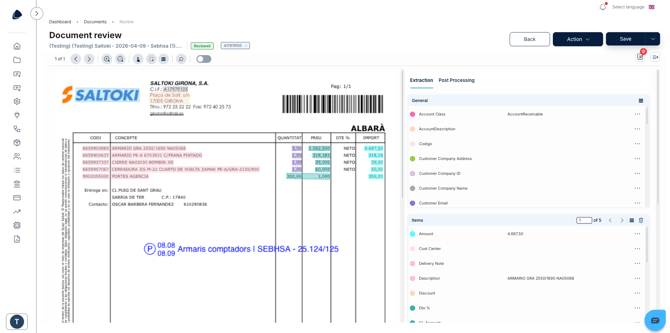
Once the changes are saved, the document status is automatically updated from In Review or Processed to Reviewed.
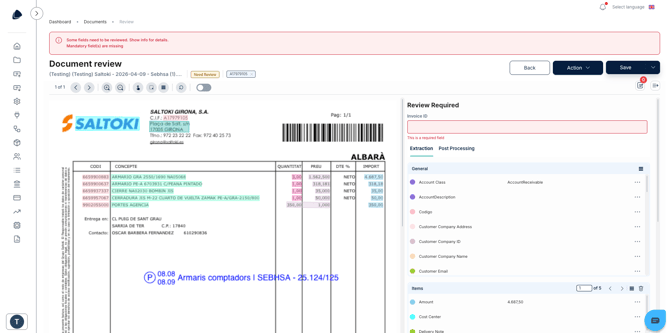
In the image below, you can see a document view with a highlighted field before it is corrected.
In the image below, you can see the document after the status has changed from Need Review to Reviewed.
Best Practices
- Define, at the team level, which fields must always be reviewed (for example: supplier, date, net amount, and taxes).
- Avoid changing the status to Reviewed if you still have doubts about any of the document data.
- Use the review process to identify recurring AI extraction errors and determine whether additional self-training or mappings would be beneficial.