
If a document has been deleted accidentally, or if you need to review previously deleted documents, Dost allows you to filter for them or access a dedicated view (if enabled in your account).
This helps reduce the risk of data loss and avoids having to ask suppliers to resend invoices that were already available in the system.
How Do I Do It? (Steps + Visual Guide)
1. Filter for Deleted Documents
- Go to the Documents section.
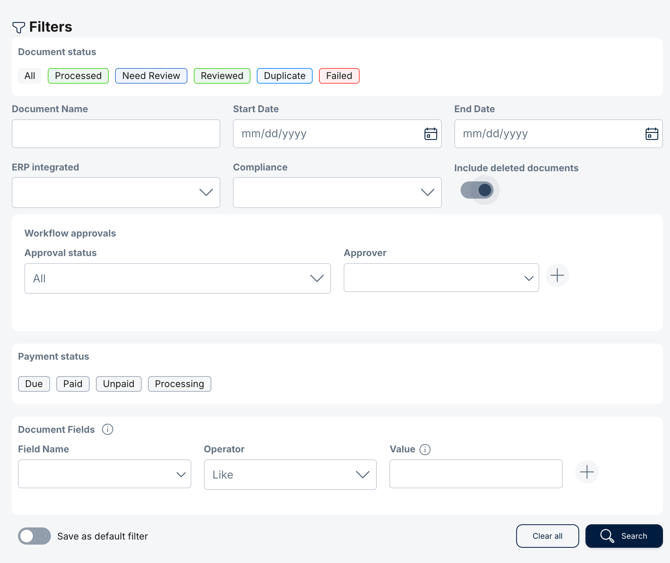
- Open the filter panel.
- Enable the Include Deleted Documents option.
2. Select the Document You Want to Review or Recover
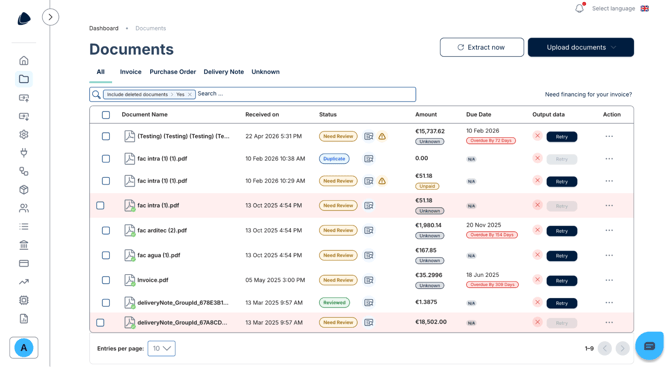
- Locate the deleted document in the filtered list.
- Click on the document row to view its details.
3. Recover the Document (If Needed)
- Download the original deleted document.
- Upload it again to the platform.
- Once the document is reprocessed, it will reappear in an active operational status.
In the image below, you can see the filter view where the Include Deleted Documents option is clearly displayed.
In the image below, you can see the list of deleted documents after selecting the Include Deleted Documents filter.
Best Practices
- Restrict document deletion permissions to appropriate user roles (for example, Admin or Finance Manager).
- Periodically review the deleted documents list to ensure that no essential documents remain there unintentionally.
- Establish an internal policy defining which documents may be deleted and which should remain archived for reference and compliance purposes.